Thursday, February 4, 2016

Java Persistance API (JPA) Hello world example with EclipseLink and Oracle

Java Persistance API (JPA) provides the interface for the java Object Relational Mapping (ORM) tools such as EclipseLink, OpenJPA, Hibernate etc. These ORM tools helps to change the application data bases without doing any code level changers on Aplication logics. In other words ORM tools reduce the coupling between application layer and database layer.

On this post I will describe step by step aproche to develop simple Java application using EclipseLink ORM tool. In another post I will explain how to do the same operation with Hibernate.

Prerequisites 
  1. You should have install java in your PC and set path variable correctly (JAVA_HOME, JRE_HOME)
  2. You should have install Eclipse Java EE LUNA 4.4 IDE or any IDE you preferred (In this post I'm Using Eclipse )
  3. You should have install Oracle on your PC. In my application I connect to the Oracle 11g database and based on that database vertion you may need to select proper databse connection driver.

Step 1 Lets create database table for our simple application
 First of all we have to have table with set of data. I will create student table using following sql.

create table student
(
studentid number,
firstName varchar2(20) not null,
lastName varchar2(20) not null,
age number(2),
primary key(studentid)
);


As you can see student will have studentid as primary key and firstName, lastName, age as other attributes.

Then I'll add some data in to this table using following SQL.

insert into student values(1,'Lakshan','Silva',21);
insert into student values(2,'Kuma','Sangakara',35);
insert into student values(3,'Nilakshi','Dissanayaka',29);


Then after retrive all the student details using "select * from student" SQL you may able to see similar result to below graph.


Our table is ready at the moment so lets move to next step.

Step 2 Lets Create Dynamic web project

First of all lets download the required jar files to this project. You should download the following jar files
1) javax.persistence-2.1.0-rc1.jar (http://mvnrepository.com/artifact/org.eclipse.persistence/javax.persistence/2.1.0-RC1)
2) ojdbc6.jar (Since I have using Oracle 11g I downloaded it from http://www.oracle.com/technetwork/apps-tech/jdbc-112010-090769.html)
 
 Go to File->New->Other select JPA project as show in below image.


Then click on Next and provide project name I use HelloworldJPA as my project name. Then select target runtime as installed JDK(In my case it's jdk1.7.0_17). Then select JPA version as 2.1 and click next.
At the end interface should be similar to below graph.


Then click next on interface ask you to select src folder( since we use default folder no need to do any modification). The you can see similar interface to below screen shot.
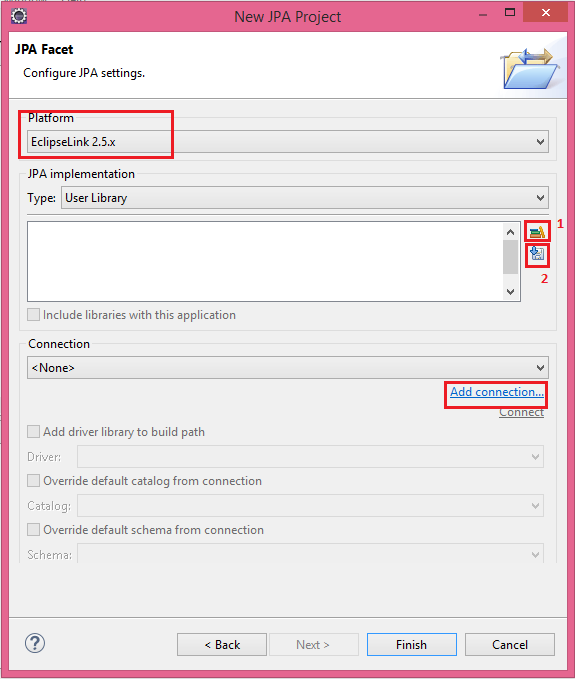


In this interface select platform as EclipseLink Then click on Manage User Libraries icon which show as No 1 red box in above image. Then click on new add user library name I use Javax.Persistence and then click Ok. The click on Add external Jars button and select the downloaded javax.persistence-2.1.0-rc1.jar then click OK.
Then lets add EclipseLink related jar files in to our project. To add that click on Download Library button(show on No 2 red box in above image). Then select the compatible EclipseLink library vertion and Click next. Then agree the agreement and download the relevant ExlipseLink jars in to project

Then lets add our database details for that click on Add connection then select connection profile type as Oracle and provide proper name for the connection I'm use "New Connection" 
Then provide details about database connection and click finish. (I have used oracle thin driver)
Then final image would be similar to below image.


 Then you may able to see project structure similar to below image.

Then double click on persistance.xml file and then go to connection tab. Select Transaction Type as Resource local. Then Click on Popular From Connection and select the database details which added on previous section. Then save the persistance.xml

Then we have to add databse drivers in to class path. Since in this example i'm using Oracle 11g I need to add ojdbc6.jar in to Build path. Right click on project and go to Build path -> Configure Build Path. Then click on Add External JARs and select the downloaded ojdbc6.jar. After adding database connecting driver in to project Java Build Path interface would be similar to below image. Then click Ok.


Step 3 Lets Create Entity class

In Object relational mapping process object table mapping done through the Entity class. On this mapping class we use different JPA anotations to spesify diferent kind of relationships on database tables.
Lets create new java class by right click on src folder and go to New-> class. then provide prefered class name with package name. I use class name as Student and package as "com.jpa.entity".

package com.jpa.entity;

import javax.persistence.Column;
import javax.persistence.Entity;
import javax.persistence.GeneratedValue;
import javax.persistence.GenerationType;
import javax.persistence.Id;
import javax.persistence.Table;

@Entity(name="Student")
@Table(name="Student")
public class Student {
    @Id
    @GeneratedValue(strategy=GenerationType.IDENTITY)

    @Column(name="studentid")
    int ID;
    @Column(name="firstName")
    String FirstName;
    @Column(name="lastName")
    String LastName;
    @Column(name="age")
    int Age;
   
    public int getID() {
        return ID;
    }
    public void setID(int iD) {
        ID = iD;
    }
    public String getFirstName() {
        return FirstName;
    }
    public void setFirstName(String firstName) {
        FirstName = firstName;
    }
    public String getLastName() {
        return LastName;
    }
    public void setLastName(String lastName) {
        LastName = lastName;
    }
    public int getAge() {
        return Age;
    }
    public void setAge(int age) {
        Age = age;
    }
   
    @Override
    public String toString() {
        return "Student [ID=" + ID + ", FirstName=" + FirstName + ", LastName="
                + LastName + ", Age=" + Age + "]";
    }
   
}


Then we have to spesify that we use EclipseLink as ORM tool and we use Student as entity class in persistance.xml. Final persistence.xml would similar to this.

<?xml version="1.0" encoding="UTF-8"?>
<persistence version="2.1" xmlns="http://xmlns.jcp.org/xml/ns/persistence" xmlns:xsi="http://www.w3.org/2001/XMLSchema-instance" xsi:schemaLocation="http://xmlns.jcp.org/xml/ns/persistence http://xmlns.jcp.org/xml/ns/persistence/persistence_2_1.xsd">
    <persistence-unit name="HellowWorldJPA" transaction-type="RESOURCE_LOCAL">
    <provider>org.eclipse.persistence.jpa.PersistenceProvider</provider>
    <class>com.jpa.entity.Student</class>

        <properties>
            <property name="javax.persistence.jdbc.url" value="jdbc:oracle:thin:@localhost:1521:xe"/>
            <property name="javax.persistence.jdbc.user" value="DBUserName"/>
            <property name="javax.persistence.jdbc.password" value="DBPassword"/>
            <property name="javax.persistence.jdbc.driver" value="oracle.jdbc.OracleDriver"/>
        </properties>
    </persistence-unit>
</persistence>


Step 4 Lets Create class to save details in to database using ORM tool
   
Right click on src folder and go to New-> class. Then provide prefered class name with package name. I use class name as MainApp and package as "com.jpa.mainApp". Then add following content in to that class.

package com.jpa.mainApp;

import javax.persistence.EntityManager;
import javax.persistence.EntityManagerFactory;
import javax.persistence.Persistence;

import com.jpa.entity.Student;

public class MainApp {
    public static void main(String[] args) {
       
        EntityManagerFactory emf=Persistence.createEntityManagerFactory("HellowWorldJPA");
        //"HellowWorldJPA" is the persistence unit name which we spesify in persistence.xml
        EntityManager em=emf.createEntityManager();
       
        em.getTransaction().begin();
       
        Student std=new Student();
        std.setID(4);
        std.setFirstName("Nilanka");
        std.setLastName("Subhash");
        std.setAge(35);
       
        em.persist(std);
        em.getTransaction().commit();
       
        em.close();
        emf.close();
    }
}


 Then lets run the class by right click on the class and go to Run As -> Java Application.
Then you should able to see similar log in colsole related to your project name and path details.

[EL Info]: 2016-02-04 17:56:10.874--ServerSession(1528705718)--EclipseLink, version: Eclipse Persistence Services - 2.5.2.v20140319-9ad6abd
[EL Info]: connection: 2016-02-04 17:56:12.674--ServerSession(1528705718)--file:/G:/Programming/LUNA_WK_SPACES/JPA_SAMPLE/HellowWorldJPA/build/classes/_HellowWorldJPA login successful
[EL Info]: connection: 2016-02-04 17:56:13.19--ServerSession(1528705718)--file:/G:/Programming/LUNA_WK_SPACES/JPA_SAMPLE/HellowWorldJPA/build/classes/_HellowWorldJPA logout successful


Then if you query student table you can see folowing output.


I will provide more advance features using Java Persistence API in my future posts. You can download the source code from following GIT location https://github.com/NirmalBalasooriya/HelloWorldJPA.


Saturday, January 2, 2016

Form handling in JSF 2

On my previous post "JSF2 Hello World Example" I have described setup Java Server Faces(JSF) project in Eclipse step by step. In this post I will describe basic JSF form handling process. I will use the same project which I used in previous post to demonstrate this post as well and you can download the previous project source from on following GitHub location https://github.com/NirmalBalasooriya/JSF4Biginner.

Step 1 Create required model classes
First of lets create a "User" model classes that we are going to use in this demonstration.  Right click on "java" folder then go to New->Class. I will provide package as src.main.java (You can use preferred package name you like) and class name as "User".  Lets add following content in to that model class.

import java.util.HashMap;
import java.util.Map;
import javax.faces.bean.ManagedBean;

@ManagedBean
public class User implements Serializable {

    private static final long serialVersionUID = 1L;
    private String firstName;
    private String lastName;

    private String gender;
    private String role;
    private boolean adminUser;
   
    private String email;
    private String contactNumber;
   
    private String userName;
    private String password;

    private static Map<String, String> genderMap = new HashMap<String, String>();
    private static Map<String, String> userRoleMap = new HashMap<String, String>();

    static {
        genderMap.put( "Male","M");
        genderMap.put( "Feale","F");
        userRoleMap.put( "Admin","ADM");
        userRoleMap.put( "Regular","NML");
    }

    public String getFirstName() {
        return firstName;
    }

    public void setFirstName(String firstName) {
        this.firstName = firstName;
    }

    public String getLastName() {
        return lastName;
    }

    public void setLastName(String lastName) {
        this.lastName = lastName;
    }

    public String getGender() {
        return gender;
    }

    public void setGender(String gender) {
        this.gender = gender;
    }

    public boolean isAdminUser() {
        return adminUser;
    }

    public void setAdminUser(boolean adminUser) {
        this.adminUser = adminUser;
    }

    public Map<String, String> getGenderMap() {
        return genderMap;
    }

    public void setGenderMap(Map<String, String> genderMap) {
        this.genderMap = genderMap;
    }

    public Map<String, String> getUserRoleMap() {
        return userRoleMap;
    }

    public void setUserRoleMap(Map<String, String> userRoleMap) {
        this.userRoleMap = userRoleMap;
    }

    public String getRole() {
        return role;
    }

    public void setRole(String role) {
        this.role = role;
    }

    public String getEmail() {
        return email;
    }

    public void setEmail(String email) {
        this.email = email;
    }

    public String getContactNumber() {
        return contactNumber;
    }

    public void setContactNumber(String contactNumber) {
        this.contactNumber = contactNumber;
    }

    public String getUserName() {
        return userName;
    }

    public void setUserName(String userName) {
        this.userName = userName;
    }

    public String getPassword() {
        return password;
    }

    public void setPassword(String password) {
        this.password = password;
    }

}


Step 2 Create User controller class
Now lets create Controller class which handles the requests related to the user activities in this project. Right click onsrc.main.java  package then go to add -> class. The set class name as Controller and click add button on interface section. Then type serializable and select Serializable interface and click Ok. Then add following content in to Controller.
 
import javax.faces.bean.ManagedBean;
import javax.faces.bean.SessionScoped;


@ManagedBean(name="mainController")
@SessionScoped
public class Controller implements Serializable{
   
    private static final long serialVersionUID = 1L;
   

}


Then lets add following method in to controller. This will load newUser.XHTML in webapp folder. Next step lets add this XHTML file in to webapp folder.

    public String getUser()
    {
        return "newUser";
    }


Then lets add newUser.XHTML file in to webapp folder with following content. Right click on webapp folder and go to New -> File type name as newUser.xhtml then click Ok.


<?xml version='1.0' encoding='UTF-8' ?>
<!DOCTYPE html PUBLIC "-//W3C//DTD XHTML 1.0 Transitional//EN" "http://www.w3.org/TR/xhtml1/DTD/xhtml1-transitional.dtd">
<html xmlns="http://www.w3.org/1999/xhtml"
      xmlns:h="http://java.sun.com/jsf/html"
      xmlns:f="http://java.sun.com/jsf/core">

<h:head>
<title>JSF Form Validation Tutorial</title>
</h:head>
<h:body>
 Please fill user details

 <br />
    <h:form>
       
        <table style="width: 100%">
            <tr>
                <td><h:outputLabel>First Name</h:outputLabel></td>
                <td><h:inputText value="#{user.firstName}"></h:inputText> </td>
            </tr>
            <tr>
                <td><h:outputLabel>Last Name</h:outputLabel></td>
                <td><h:inputText value="#{user.lastName}"></h:inputText> </td>
            </tr>
            <tr>
                <td><h:outputLabel>Gender</h:outputLabel></td>
                <td>
                <h:selectOneRadio value="#{user.gender}">
                    <f:selectItems value="#{user.genderMap}"></f:selectItems>
                </h:selectOneRadio>
                </td>
            </tr>
            <tr>
                <td><h:outputLabel>User role</h:outputLabel></td>
                <td>
                <h:selectOneMenu value="#{user.role}">
                    <f:selectItems value="#{user.userRoleMap}" var="c"
                    itemLabel="#{c.code}" itemDescription="#{c.name}"></f:selectItems>
                </h:selectOneMenu>
                </td>
            </tr>
            <tr>
                <td><h:outputLabel>Contact Number</h:outputLabel></td>
                <td><h:inputText value="#{user.contactNumber}"></h:inputText> </td>
            </tr>
            <tr>
                <td><h:outputLabel>Email</h:outputLabel></td>
                <td><h:inputText value="#{user.email}"></h:inputText> </td>
            </tr>
            <tr>
                <td><h:outputLabel>User Name</h:outputLabel></td>
                <td><h:inputText value="#{user.userName}"></h:inputText> </td>
            </tr>
            <tr>
                <td><h:outputLabel>Password</h:outputLabel></td>
                <td><h:inputSecret ></h:inputSecret> </td>
            </tr>
            <tr>
                <td><h:outputLabel>Reenter Password</h:outputLabel></td>
                <td><h:inputSecret value="#{user.password}"></h:inputSecret> </td>
            </tr>
            <tr>
                <td> </td>
                <td> </td>
            </tr>

            <tr>
                <td></td>
                <td>
                <h:commandButton value="Submit" action="#{mainController.saveUser()}"></h:commandButton>
                </td>
            </tr>

        </table>
    </h:form>
 <br />
</h:body>
</html>


Lets add following two controller methods to load the newUser xhtml file and then handle the saveUser call in form sumbit action on newUser interface.

    public String getUser()
    {
        return "newUser";
    }
   
    public String saveUser()
    {
        return "user";
    }


Lets add new link in to default.xhtml file in webapp folder. Here value attribute will contain the word which see on link and the outcome attribute will be redirecting URL on click event on link.

    <h:link value="#{mainController.getUser()}" outcome="#{mainController.getUser()}"></h:link>

This will provide link to new user xhtml file.

Next lets add user.xhtml file in to webapp folder. This will responsible to load user entered details to the client in new page. Right click on webapp folder and go to New -> File type name as user.xhtml then click Ok. Then add following content in to that file.


<?xml version='1.0' encoding='UTF-8' ?>
<!DOCTYPE html PUBLIC "-//W3C//DTD XHTML 1.0 Transitional//EN" "http://www.w3.org/TR/xhtml1/DTD/xhtml1-transitional.dtd">
<html xmlns="http://www.w3.org/1999/xhtml"
    xmlns:h="http://java.sun.com/jsf/html"
    xmlns:f="http://java.sun.com/jsf/core">
<h:head>
    <title>JSF Form Validation Tutorial</title>
</h:head>

<h:body>
    User Details
 <br />
    <h:form>
        <table style="width: 100%">
            <tr>
                <td><h:outputLabel>First Name</h:outputLabel></td>
                <td><h:outputLabel value="#{user.firstName}"></h:outputLabel></td>
            </tr>
            <tr>
                <td><h:outputLabel>Last Name</h:outputLabel></td>
                <td><h:outputLabel value="#{user.lastName}"></h:outputLabel></td>
            </tr>
            <tr>
                <td><h:outputLabel>Gender</h:outputLabel></td>
                <td><h:outputLabel value="#{user.gender}"></h:outputLabel></td>
            </tr>
            <tr>
                <td><h:outputLabel>User role</h:outputLabel></td>
                <td><h:outputLabel value="#{user.role}"></h:outputLabel></td>
            </tr>
            <tr>
                <td><h:outputLabel>Contact Number</h:outputLabel></td>
                <td><h:outputLabel value="#{user.contactNumber}"></h:outputLabel>
                </td>
            </tr>
            <tr>
                <td><h:outputLabel>Email</h:outputLabel></td>
                <td><h:outputLabel value="#{user.email}"></h:outputLabel></td>
            </tr>
            <tr>
                <td><h:outputLabel>User Name</h:outputLabel></td>
                <td><h:outputLabel value="#{user.userName}"></h:outputLabel></td>
            </tr>
            <tr>
                <td><h:outputLabel>Reenter Password</h:outputLabel></td>
                <td><h:outputLabel value="#{user.password}"></h:outputLabel></td>
            </tr>
            <tr>
                <td></td>
                <td></td>
            </tr>
        </table>
    </h:form>
    <br />
</h:body>
</html>


Final project structure will be similar to below image.


To the run the project right click on project and go to Run As -> Run on Server then select the installed Tomcat 7 and click finished. 


Then click on newUser link and fill the User details form.


Then click on Submit button and you will see similar to below image.


We have completed our form handling tutorial using JSF. You can access the project on following URL Repository https://github.com/NirmalBalasooriya/JSFFormHandling. In future post I will provide more advance features in form handling using JSF.